Mobile Coder
Use Case
Adding a small feature or fixing a bug. No agentic planning needed - I already know exactly which files I want to change.
Steps
- Open file
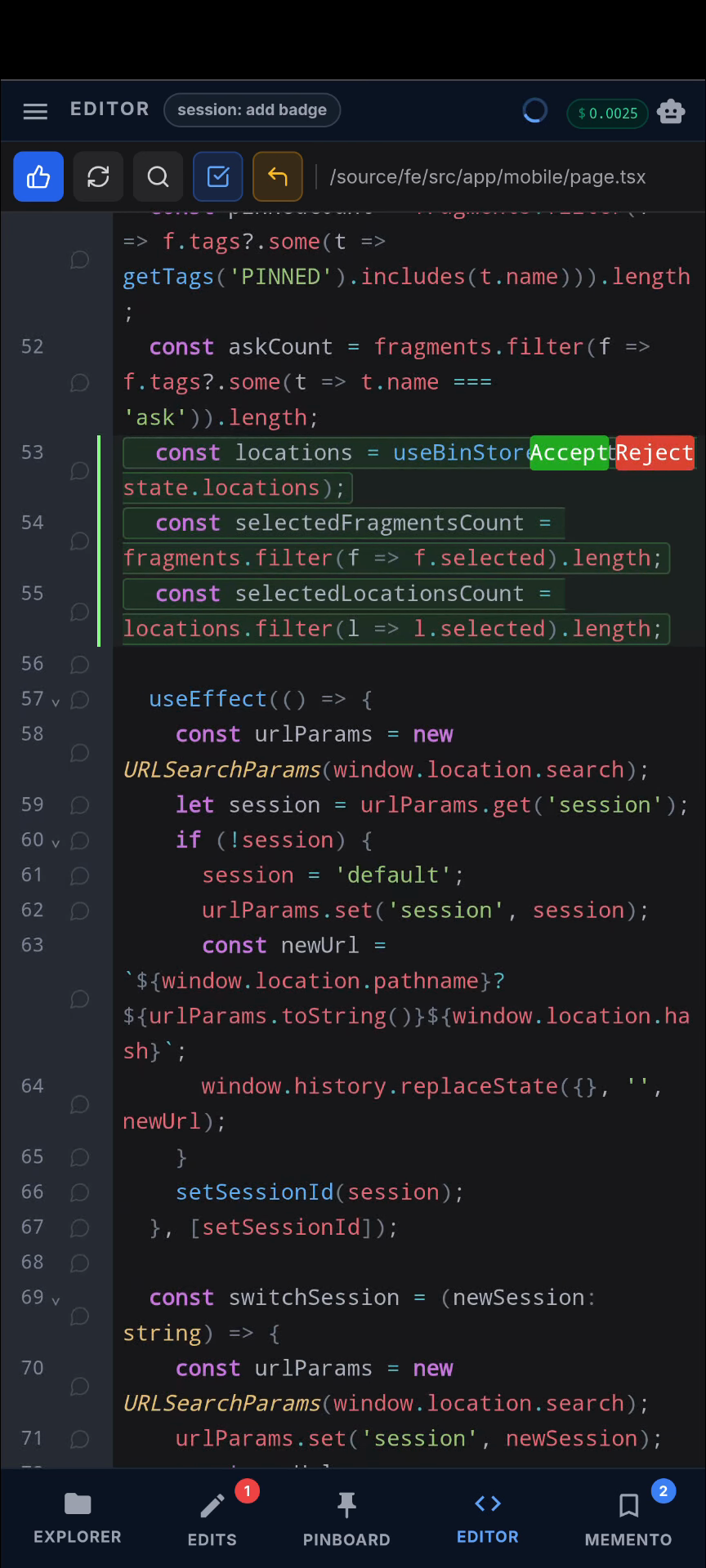
- Add comments to the file to indicate what needs to be done
- Launch the
Coderflow - Select the option to
Verify Objective. This option will run compile, test, etc, whatever the acceptance criteria is for that project after the code changes are applied. - Accept the file edits
- Review the outcome (e.g. build or test results) in the
Mementotab (tag#objective)
Handling incorrect solutions
Sometimes the LLMs will produce a solution that does not yield the desired outcome. And it can be because I underspecified the request.
In other frameworks such problems are resolved by continuing a chat conversation. I find that suboptimal because I have to type words to explain where the fix should be made for example.
My solution is as follows:
- Add targeted comments to files, e.g. “Actually, use the pattern you see here to load the data”.
- Tap the ↩️ button at the top. That will send back the request (together with focused comments) to the LLM to resolve the problem.
In my experience this surgical approach of adding targeted comments to files is a lot more effective on mobile than replying to a long chat.
Conclusion
A while back when I initially built this feature I anticipated it being quite handy, but I underestimated how much. I used to write notes “Add feature so and so” or “Fix bug so and so”, but now I don’t do that anymore. Waiting in line at the coffee shop I can add a comment to a file and by the time I have the cappuccino in my hand the feature is implemented, tested and deployed. In the recording I approved the change manually to show that option, but the default is auto-edit which applies the changes automatically. Also, I showed the Coder flow, which is great for precise surgical changes, but I usually use the Planner flow which does automatically find the files to change, researches the capabilities, delegates to the Coder flow to make changes, runs the Objective functions, etc.
Other than small features and bugs, the mobile app is useful for launching the Planner for complicated tasks, e.g. a large migration, and letting it run in the background. The Planner then posts questions on the Pinboard as comments, which I then answer and then it continues to make progress in the background throughout the day.
Since the app runs in Chrome, I can have as many working sessions as I want, each in a separate Chrome tab. At the top there is a Cost badge that shows the cost of that session.